t-rec: Config Profiles, Wallpapers and Smoother Animations
With versions 0.7.11 through 0.8.1, t-rec gained several features that make terminal recordings more configurable and visually appealing. If you don't know t-rec yet: it's a terminal recorder written in Rust that captures your terminal session and outputs a GIF or MP4.
Here's what's new.
# Configuration Profiles
Instead of passing the same flags repeatedly, you can now store settings in a config file. Initialize one with:
t-rec --init-configThis creates a config at ~/.config/t-rec/config.toml (Linux) or ~/Library/Application Support/t-rec/config.toml (macOS).
A config file can define default settings and named profiles:
# default settings applied to all recordings
[default]
wallpaper = "ventura"
wallpaper-padding = 80

# named profiles for different use cases
[profiles.demo]
fps = 10
wallpaper-padding = 120
start-pause = "1s"
end-pause = "2s"

[profiles.quick]
quiet = true
video-only = true
Use a profile with --profile:
t-rec --profile demoYou can override profile settings on the command line (CLI flags always win; config is searched in ./t-rec.toml first, then user config):
t-rec --profile demo --fps 12List available profiles with --list-profiles.
# Custom Wallpapers
Recordings can now have a background wallpaper. There's a built-in "ventura" preset featuring macOS Ventura backgrounds:
t-rec --wallpaper venturaOr use your own image (PNG, JPEG, TGA):
t-rec --wallpaper ~/Pictures/my-background.pngControl the padding around the terminal window:
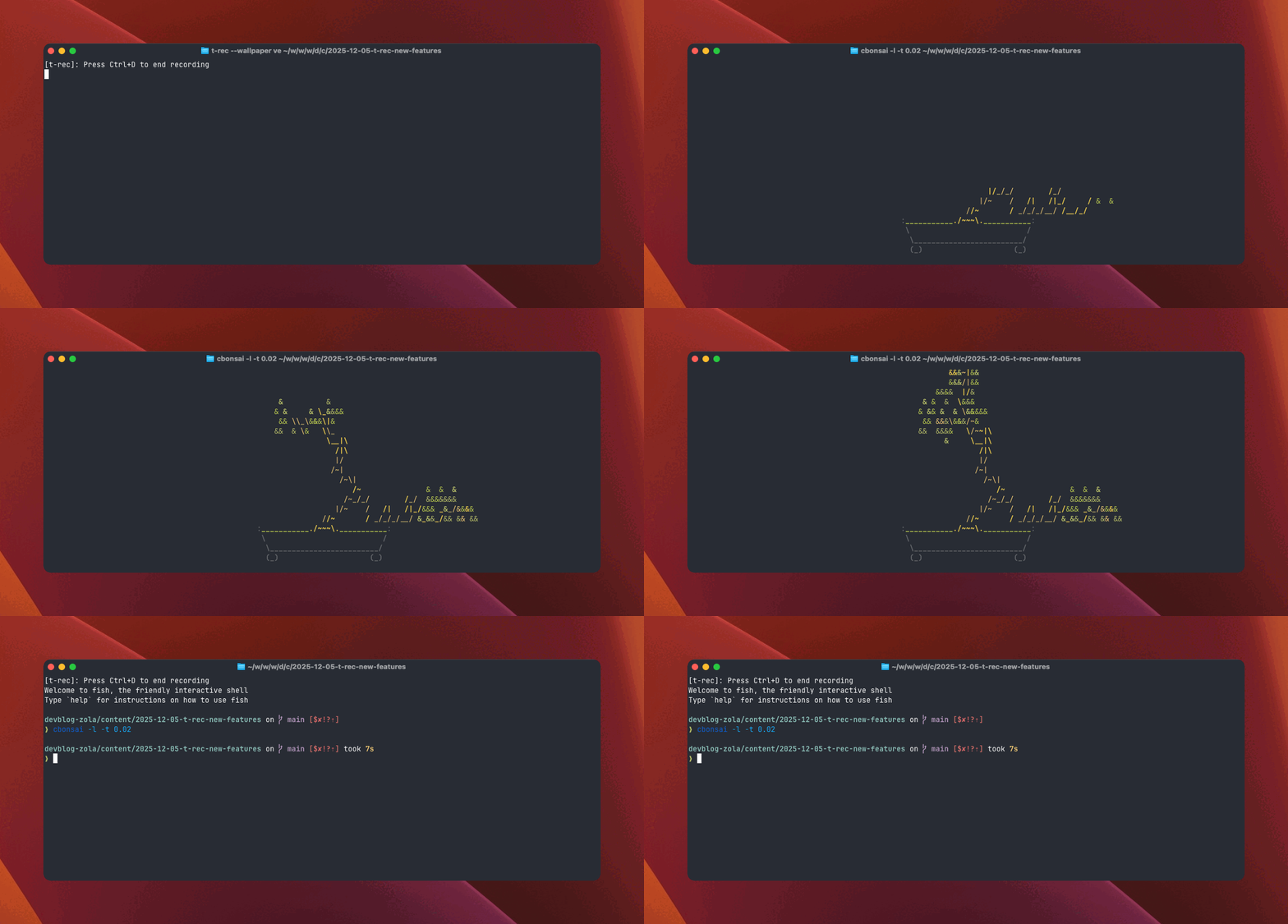
# recorded with ghostty (128x20)
t-rec --wallpaper ventura --wallpaper-padding 80 --fps 10
cbonsai -l -t 0.02
Terminal: Ghostty
# Configurable Framerate
The default 4 fps works for most recordings, but smoother typing animations sometimes look better. The new --fps flag lets you choose between 4 and 15:
t-rec --fps 10Higher framerates produce larger files but capture fast typing or scrolling more clearly.
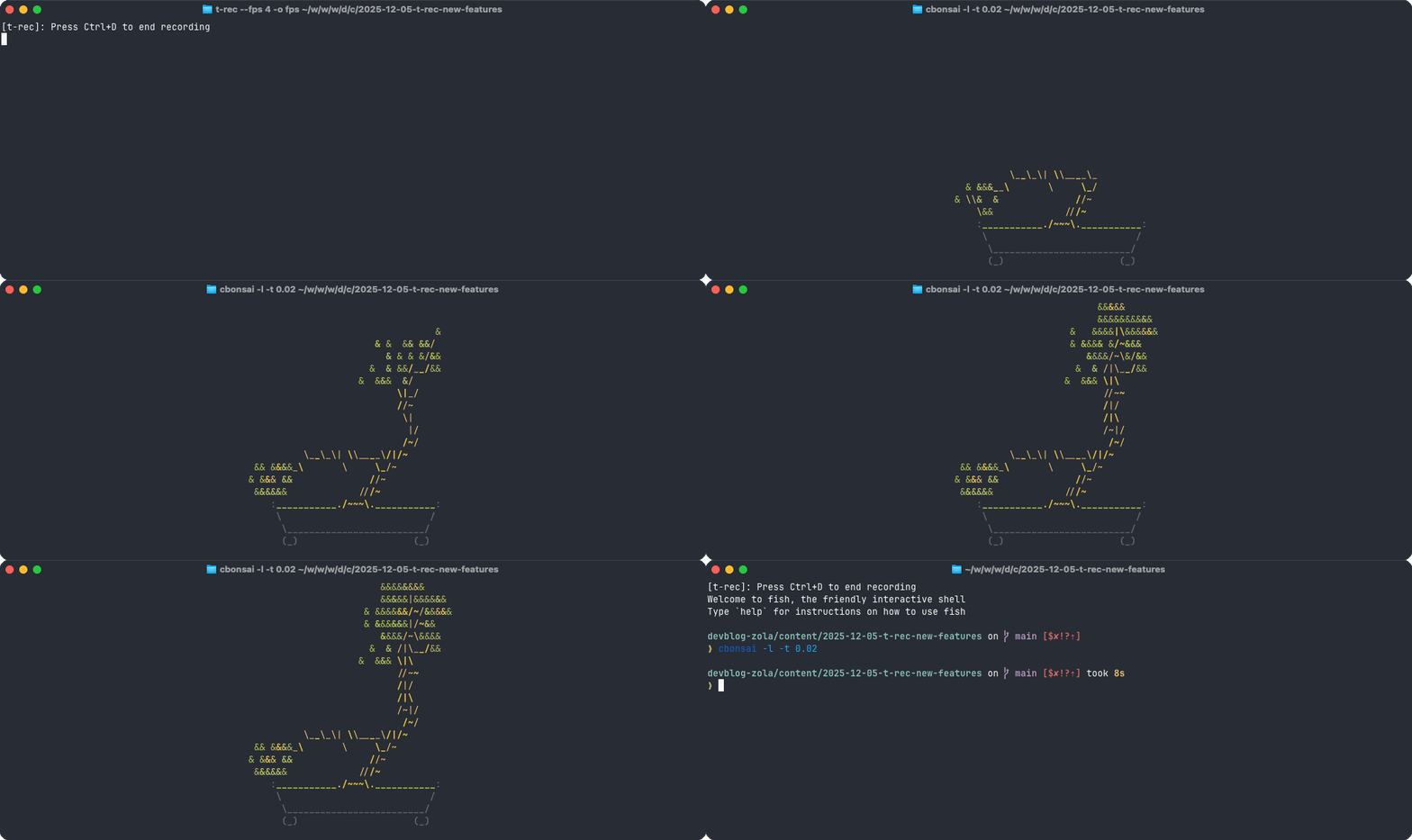
# recorded with ghostty (128x20)
t-rec --fps 4
cbonsai -l -t 0.02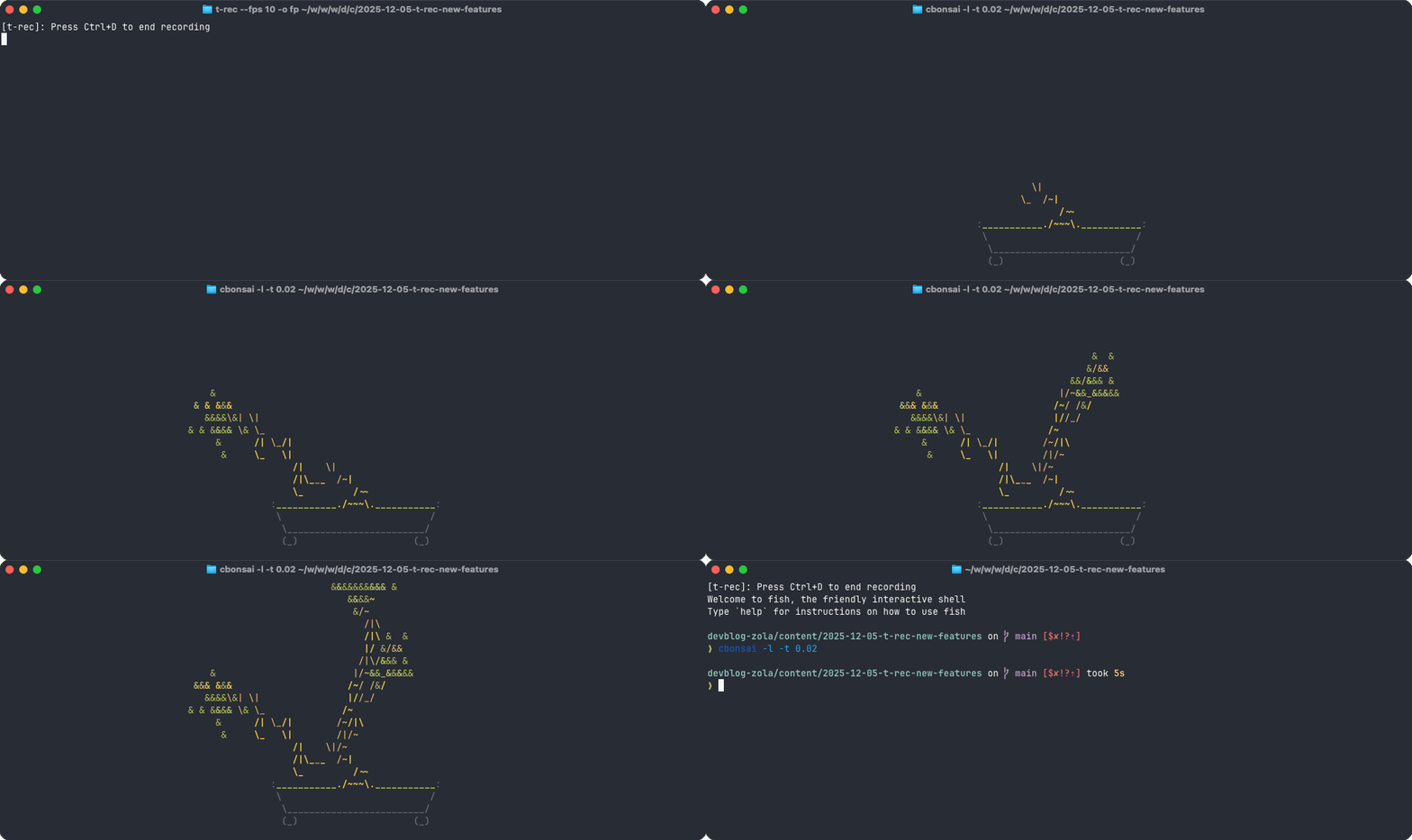
# recorded with ghostty (128x20)
t-rec --fps 10
cbonsai -l -t 0.02
# Interactive Video Prompt
After finishing a recording, t-rec now:
- shows a summary of the recording settings, and
- asks if you also want to generate an MP4 video
📋 Recording summary
   ├─ fps: 10
   ├─ idle-pause: 3s
   ├─ frames: 67
   └─ output: fps-10

🎆 Applying effects (might take a bit)
💡 Tip: For a mp4 video, use the `-m` option
🎉 🚀 Generating fps-10.gif

🎬 Also generate MP4 video? [y/N]
(auto-skip in 15s)
Press y for both GIF and MP4, or n (or just wait 15 seconds) to skip. The prompt is skipped in quiet mode (-q) or non-interactive environments.
To always generate video without being asked, use --video or --video-only.
# Other Improvements in 0.8.1
- Improved CLI help text readability
- Fixed terminal state restoration when the video prompt times out (the terminal would previously stay in a broken state)
- Updated Ventura wallpaper assets
# Installation
Update via cargo:
cargo install t-recOr via Homebrew:
brew upgrade t-recAlso available via MacPorts, Snap, AUR, and NetBSD pkgin.
For the full changelog, see CHANGELOG.md.